
02 | Python and IDE Setup for Datacooper Beginners
Follow uv-first setup for uv and Python, understand what pip install does, and prepare for both script and MCP paths.
What You Will Learn
After this article, you should be able to confirm uv and Python are both ready and run a minimal Python file.
Prerequisites
- You finished
01 | Datacooper Beginner Path - Your machine can access the internet
Understand First: uv, Python, and pip
uv: manages Python versions and tooling with cleaner isolation and faster installs.Python: runtime that executes.pyfiles.pip install: installs tool packages and dependencies so scripts and AI agents can call them.
Simple mental model: uv manages environment, Python runs code, pip installs capabilities.
Step 1: Install uv (Recommended)
Run the command for your OS:
Windows (PowerShell):
powershell -ExecutionPolicy ByPass -c "irm https://astral.sh/uv/install.ps1 | iex"macOS / Linux:
curl -LsSf https://astral.sh/uv/install.sh | shThen verify:
uv --versionStep 2: Install/Manage Python with uv
Use Python 3.11+ with:
uv python install 3.11If you want python / python3 available by default, run:
uv python install --default 3.11Then run:
python --version
pip --version
If both return versions, Python is ready.
Step 3: Install IDE and Agent
Use Cursor or VS Code.
- Install IDE
- Install Python extension
- Enable an AI agent (Cursor Agent / Claude / Codex)
- Create
hello.py
print("Datacooper setup success")Run it in the IDE and confirm output.
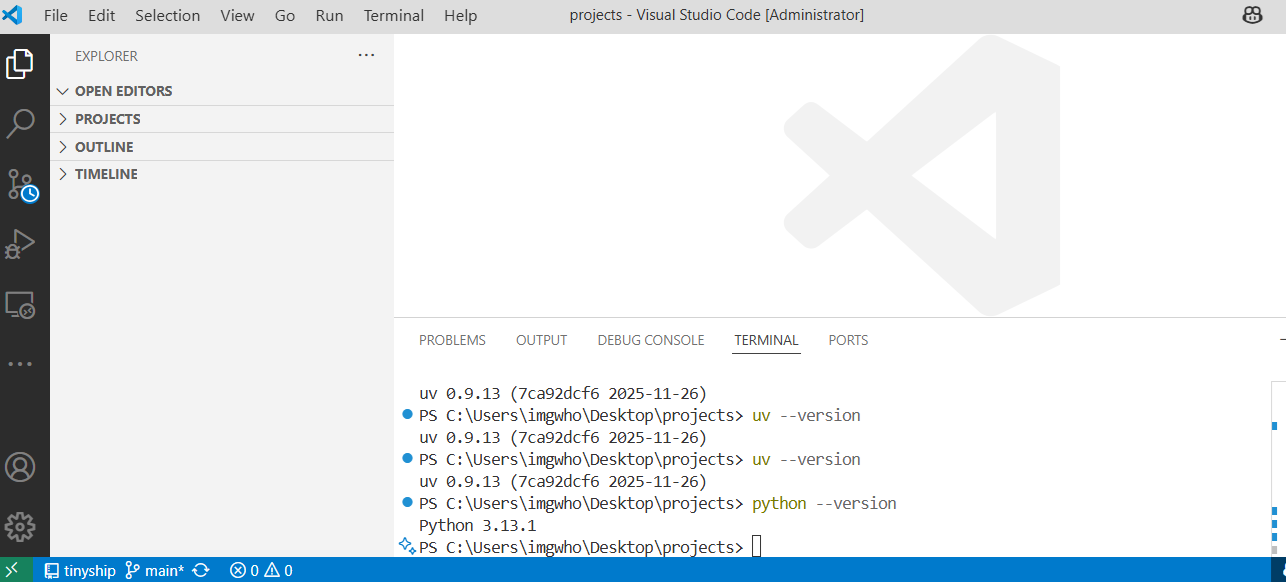
This single image is enough as proof that uv + Python setup is working and code execution is successful.
Step 4: Understand pip install and Install Tool Packages
pip install makes cwprep and cwtwb callable from your local Python environment. If you skip pip install, you can still use MCP later, but your script-first primary path is incomplete.
pip install -U pip
pip install cwtwb
pip install cwprep
Notes:
pip install cwtwb: installs cwtwb Python capabilities.pip install cwprep: installs cwprep Python capabilities.- If you later choose a pip-based MCP path (instead of
uvx), also install:pip install "cwprep[mcp]".
Validation Checklist
uv --versionworkspython --versionworkspip --versionworks- IDE + agent can run
hello.py
If You Hit Setup Problems
- Paste the full error into your AI agent and ask for explanation + fix commands.
- Resolve environment issues first, then continue to MCP setup.
Common Issues
uvnot found: reopen terminal after installpythonnot found: PATH issue or reinstall via uv- Install timeout: retry on stable network
- IDE cannot run: verify selected Python interpreter
Next Step
Continue with 03 | MCP Setup and First Connectivity Check.